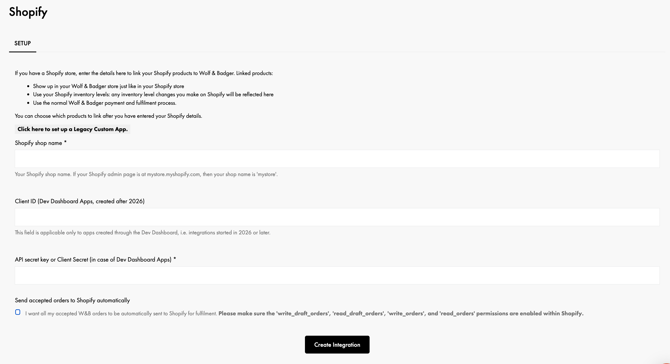
To integrate with Wolf & Badger, head to the Shopify setup page on the dashboard:
- The shop name comes from your shop admin page URL. If your admin page is at https://myshopname.myshopify.com, your shop name is myshopname.
- The Client ID and Client Secret can be found on the settings page for the custom app created (see below for full instructions)
- Please ensure you save your Client ID and Client Secret for future reference.
Video Tutorial Guide:
Follow the steps below to set up the custom Shopify app needed for our dashboard using the Shopify Dev Dashboard:
Go to your Shopify store and click Settings in the bottom left-hand corner.
You'll see the menu below, click Apps & Sales Channels or Apps:

Click Develop Apps:
Then click Build apps in Dev Dashboard: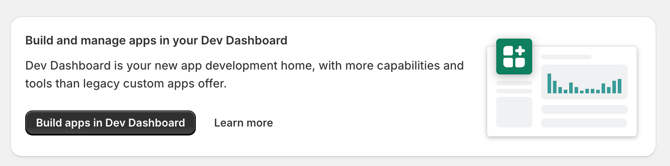
Your Dev Dashboard should automatically open in a new tab.
When viewing the 'Apps' page, click the Create App button. On the new page that loads, name the app WBIntegration and click Create: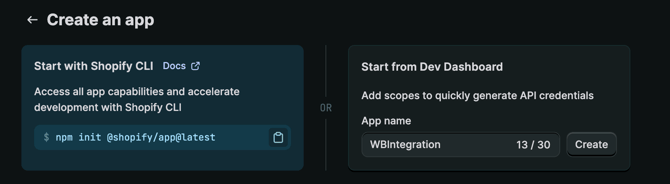
The Custom App has now been created but the settings have not yet been completed.
On the 'Create a version' page that will automatically open, you now need to select the needed Webhooks API Version and Access Scopes for our integration.
You do not need to edit any of the other sections on this page apart from the Webhooks API Version and Access Scopes sections.
Amend the drop-down menu under Webhooks API Version so that 2026-04 is selected.
For the access scopes, to ensure data is shared between Shopify and the Wolf & Badger dashboard, ensure that the following are added:
write_inventory
read_inventory
read_locations
read_products
If you also wish to use Shopify to manage your Wolf & Badger orders, ensure that the following are also enabled:
write_draft_ orders
read_draft_ orders
write_orders
read_orders
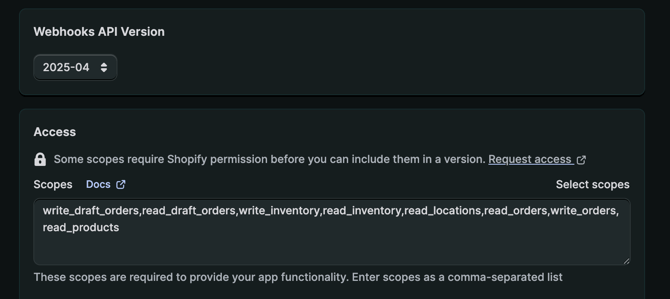
Please don't share all permissions - this may impact the performance of the integration
Once these have been selected, scroll to the bottom of the page and click Release.
Once released, navigate to the Home tab for the custom app and click Install app. This will open a new page for you to confirm the Shopify store that you wish to install this to, and then another page to confirm the install.
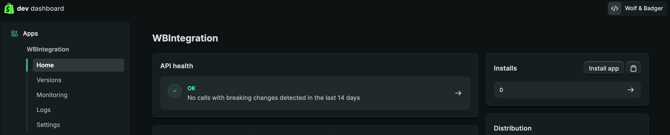
- Client ID
- Client Secret
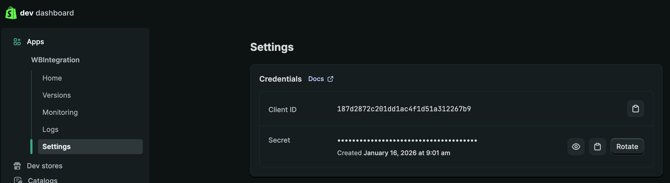
We strongly advise that you also save a copy of these details, as they may be needed in the future should you need to update your integration.
Can't remember your shop name? You can find this in your Shopify URL or under Settings > Domains: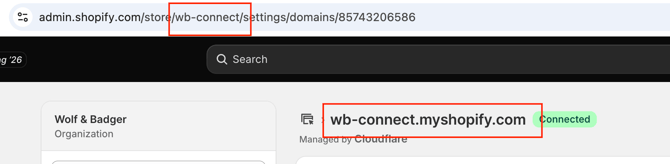
On your Wolf & Badger dashboard, go to the 'Shopify' section to load the setup page.
Click the 'Click here to set up a Dev Dashboard App' button to change the setup view:
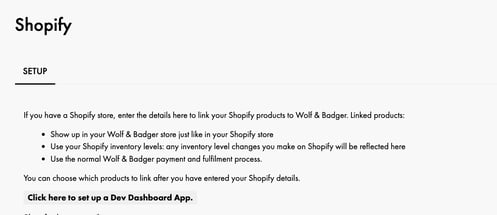
Enter your details for the custom app created. Ensure that the 'Send accepted orders to Shopify automatically' box is ticked if you want to export your Wolf & Badger orders to Shopify for fulfilment.
Once completed, just click 'Create Integration':
The 'Unimported' page will initially appear blank, but if you refresh after 30 seconds, the items should begin to appear available to import or link to existing Wolf & Badger products.
For steps on how to import new products, please view this article.
If you have already manually created your products on Wolf & Badger, then you can link these to Shopify by following these steps from step 3.
Key info - Shopify Inventory sync:
We now only pull stock data from active Shopify locations that are online-enabled: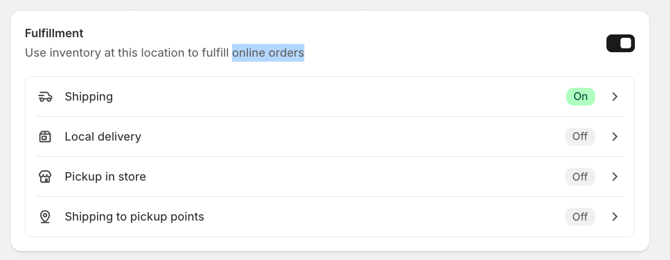
If your Shopify has multiple stock locations which fit this criteria, you can adjust which Shopify locations are included in your Wolf & Badger stock levels via the Stock section of your dashboard under the Shopify Locations tab.
Getting an error when trying to set up the integration on the dashboard?
If you are getting an error when trying to integrate the custom app created to your W&B dashboard, check the following information:
- The custom app has been created with the correct scopes: If these need to be updated/amended, follow the steps in this guide
- The app has been installed to your Shopify store
- The custom app was created on the Dev Dashboard for the Shopify store that you wish to use for the integration (not a third-party dev dashboard)
- You are using the correct store name: Your Shopify shop name can be found within Shopify directly. If your Shopify admin page is at mystore.myshopify.com, then your shop name is 'mystore'.
- You are clicking the 'Click here to set up a Dev Dashboard App' button on the Shopify integration set-up page on the Wolf & Badger dashboard before entering your details
If you have any issues with setting up your Shopify custom app or integrating with the dashboard, please feel free to contact the Brands Support team for further assistance.