You can use your Shopify integration to import products onto Wolf & Badger.
When you import a product, Wolf & Badger maps your product information (title, description, images and pricing) from Shopify and starts a new Wolf & Badger product based on this information. The system also creates variants and links colours too. This creates draft product(s) here.
Due to the fact Shopify and Wolf & Badger product upload forms are differently formatted, you'll need to manually enter some product info on the Wolf & Badger product, before submitting it for approval Note that all normal product approval rules apply. See this article for more information.
Step 1: Refresh Unimported Products
-
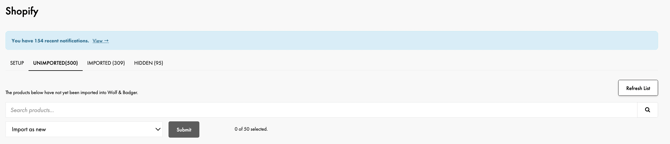
Go to the Unimported tab under Shopify integrations.
-
Click Refresh List to load newly created Shopify products.
-
Wait a few minutes for the integration to pull all products.
Note: New Shopify products are not automatically imported.
Step 2: Import the Product
-
Click Import on a product in the Unimported list and complete the import form, choosing the product category and mapping your variants.
-
Choose your sync options:
-
-
Stock Sync: Shopify stock becomes master; W&B stock will update automatically.
-
Price Sync: Shopify price becomes master; any Shopify sales/discounts apply to W&B product. Note that this option will only appear if your Shopify base currency is the same as that on your W&B dashboard
-
-
- Once all fields have been mapped out and you've chosen your linking options, click 'Import Product'. You will then be taken to the newly created draft product, which is created after importing the Shopify product into the dashboard.
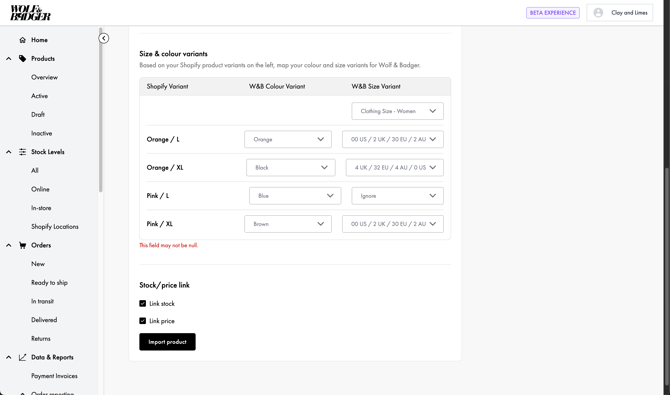
Note that each W&B Colour Variant selected will create 1 product for that colour.
If you have multiple options that come under the same W&B colour option, e.g. a sky blue and navy blue version of the same item, only one product will be created if 'Blue' is selected for both.
As a workaround for this, choose a different unique colour option from the menu. This will then separate the product varaints into different W&B product listings. The colour information can be adjusted when the draft product is created to ensure that the correct colour is listed in the product name and colour variant field.
Step 3: Complete Product Draft
-
Add any missing information.
-
Click Submit to send the product to the W&B approvals team.
-
Normal approval rules apply.
-
See full walkthrough video here
If you have any questions about the Shopify import process, you can reach the brands support team here.