If you haven't created your Wolf & Badger custom app within Shopify yet, follow the steps in this help centre article.
For Shopify Legacy apps:
Shopify Shop Name - This can be found in the top left corner of your Shopify store: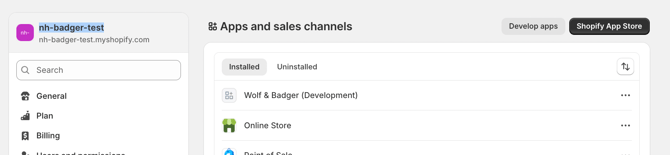
Admin API Access Token - This token is only viewable once when you initially set up the app and connect it with the dashboard. If you didn't make a note of the Admin API Access Token at the time, you'll need to delete the app within Shopify and create a new one.
Follow the steps here to create a new app.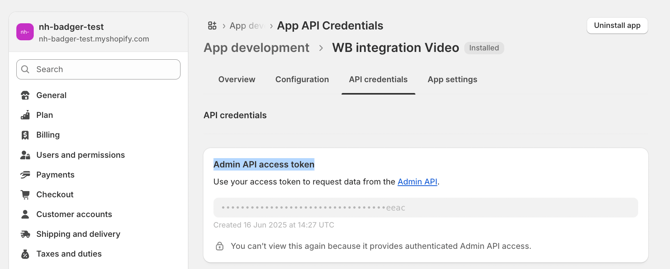
Please note - If you have to delete the existing app and create a new one, your products won't be deleted on the dashboard but any existing price and/or stock syncs will be deleted. Once the new app is set up and you've connected it with the dashboard, you'll need to relink the products here
API Secret Key -- - This can be found by heading to Shopify / Settings / Apps & Sales Channels / Develop Apps / Click WB Integration / API Credentials
Scroll down and you'll see this section, copy & paste the secret key into the dashboard here: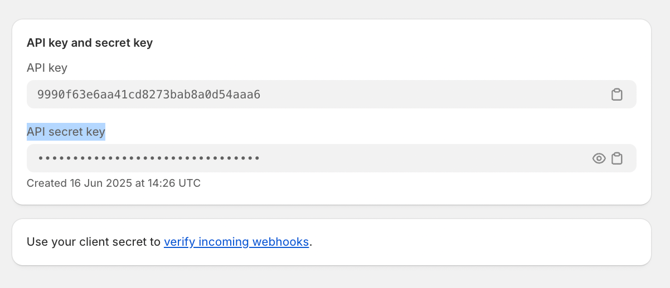
If your custom app is already set up and you're just editing the permissions scopes, head to:
Head to Shopify / Settings / Apps & Sales Channels / Develop Apps / Click WB Integration / Configuration tab
Finally, click the edit button within the Admin API integration section as shown below, update your permissions and click save: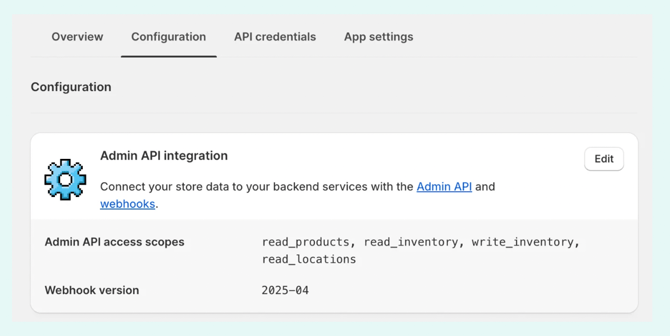
For Shopify Dev Dashboard apps:
Shopify Shop Name - This can be found in the top left corner of your Shopify store:
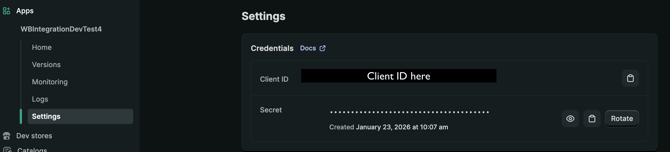
Client ID and Secret - This can be found in your Dev dashboard when viewing the custom app created, under 'Settings'. To view the 'Secret' you need to click the eye icon to reveal the code
If your custom app is already set up and you're just editing the permissions scopes, head to:
Head to 'Versions', then click the 'create a version' button.
On the page that loads, you can then edit the enabled scopes under the 'Access' section by either entering the scopes you need to add or clicking 'Select Scopes' to be able to select these from the available list.
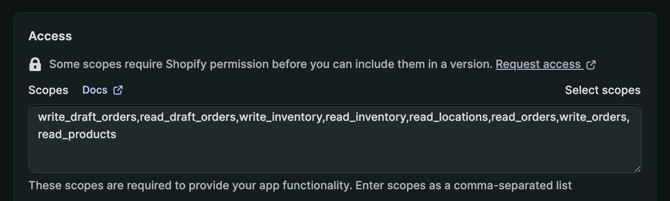
Once updated, click the 'Release' button at the bottom of the page.
We need the following permissions for Shopify product import and linking:
write_inventory
read_inventory
read_products
read_locations
If you want to export orders to Shopify, the following permissions also need to be enabled:
write_draft_ orders
read_draft_ orders
write_orders
read_orders
write_customer
The Webhook version that should be selected is 2026-04.
Please don't share all permissions - this can cause unforeseen issues and potentially disrupt the integration connection & performance.
For both custom app types, once you've updated this information with Shopify, to ensure that these feed through to the dashboard intergration you will need to enter your Shopify information on the Shopify integration setup page and click 'Update'.
For further info & support, contact the Brands Support team here.