Step 1: Verify Custom App permissions and Update the Shopify Integration
- As a first step, we recommend verifying that all the details for the custom app are correct, such as the access scopes. For steps on how to check these details and make updates if needed, please see this article.
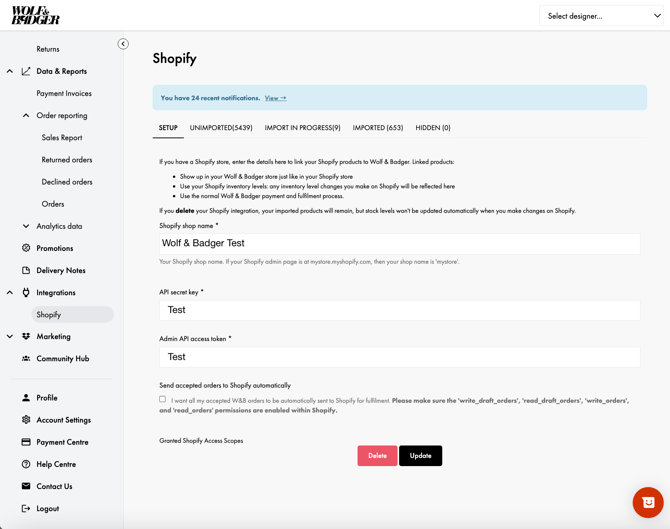
- Once this has been confirmed, go to the Shopify integration set-up page, re-enter the details of your Shopify custom app on the correct page, depending on your app set-up process
- Select whether you would like to send accepted orders to Shopify automatically using the tick box labelled 'Send accepted orders to Shopify automatically'
- Click 'Update'
- Review your stock levels in the 'Stock Levels' tab
- Go to the Stock Levels tab.
- Check if your stock is editable manually, if not this means it is correctly synced, see examples below:
Shopify Synced Stock Manually Managed Stock (non-synced)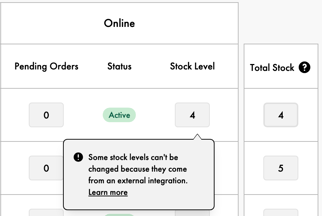
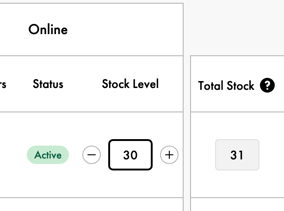
- If not synced and the stock is being controlled manually, follow the steps in this article (also step 4) to link the item to Shopify.
Step 3: Refresh Your Shopify Stock Levels
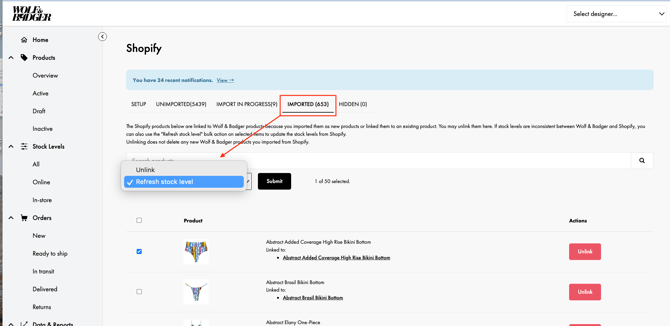
To refresh individual products with incorrect stock levels:
-
Go to the Integrations tab.
-
In the Imported section, find the product you want to update.
-
Check the box next to the product.
-
From the dropdown menu, select "Refresh from Shopify".
-
Click Submit.
Tip: Refresh only one product at a time to avoid sync issues.
Note: If an error message appears, the item will need to be relinked following Step 4
Step 4: Re-link your Shopify Imported Products
-
Go to the Imported tab of the Shopify integration.
-
Click ‘Unimport’ for any product with incorrect stock levels.
-
Note: This will not delete the product, only temporarily disconnect the stock sync between Shopify and W&B.
-
-
The product will now appear in the Unimported tab.
-
Click the dropdown next to ‘Import’, and re-match the product and product sizes to the correct item.
-
Click Import to re-enable the sync.
-
Check the Stock Levels page to see if the issue is resolved.
For further instructions on how to link/unlink products from Shopify click here.
Step 5: Check Your Enabled Shopify Location
We automatically pull stock from active locations that are online-enabled when your integration is set up. You can amend which locations are included by deselecting certain locations from being included. You can choose the location by selecting: Stock Levels -> Shopify Locations
Note that stock levels may take a few minutes to update when changes are made to included locations. If the stock is incorrect after 10 minutes, refresh stock levels for the item following (Step 3).
Still not syncing correctly? Manage Stock Levels Manually
If stock levels are still incorrect and you're receiving orders for out-of-stock items, we recommend switching to manual stock management.
-
To do this for a single product:
Go to the Imported tab in your Shopify integration, find the product, and click “Unlink”.This will sever the connection between the Wolf & Badger product and Shopify.
Note: This also stops price sync for that product, so please check that the price entered for the item is correct by viewing it in your Products section.
You can now update its inventory in the Stock Levels tab. -
To stop Shopify from managing stock for all products:
Go to the Imported tab in your Shopify integration and use the tick box to select all linked items, then click “Unlink”. Repeat this until all items are unlinked from Shopify.Delete the integration from your Shopify setup page. You can delete the integration here.
You’ll be able to manage inventory manually in the Stock Levels tab.