Before starting with the Shopify integration its important to note:
-
Complete your brand profile:
Your brand profile must be completed, submitted, and approved before accessing the Shopify integration. For step-by-step instructions: How do I set up my profile? -
Review which currencies are supported in the Shopify integration:
-
Wolf & Badger supports USD, GBP, EUR, AUD, CAD.
-
If your Shopify store uses a different currency, you won't be able to sync prices. Instead, manually enter prices on W&B using the correct currency conversion.
-
-
Ensure your Shopify is connected to the Wolf & Badger dashboard:
Before you can import products from your Shopify you will need to:
-
Create the custom Shopify app
and allow Shopify Permission Scopes & Retrieve API Keys/Tokens
-
Enter your Shopify credentials to the Shopify Integration tab
-
After connecting, Shopify products will appear in the Un-imported section of the Integrations tab.
Methods of Managing Shopify Products
Options for Product Management
You can choose between different workflows:
| Workflow | Stock | Price | Notes |
|---|---|---|---|
| Import from Shopify + sync stock/price | Auto | Auto | Shopify is master |
| Import from Shopify + manage stock/price manually | Manual | Manual | No sync |
| Create manually on W&B + link Shopify | Auto or manual | Auto or manual | Requires linking |
| Create manually on W&B + manage manually | Manual | Manual | No sync |
Import Your Products from Shopify
See full walkthrough video here
When you import a product, Wolf & Badger maps your product information (title, description, images and pricing) from Shopify and starts a new Wolf & Badger product based on this information. The system also creates variants and links colours too. This creates draft product(s) here.
Due to the fact Shopify and Wolf & Badger product upload forms are differently formatted, you'll need to manually enter some product info on the Wolf & Badger product, before submitting it for approval Note that all normal product approval rules apply. See this article for more information.Step 1: Refresh Unimported Products
-
Go to the Unimported tab under Shopify integrations.
-
Click Refresh List to load newly created Shopify products.
-
Wait a few minutes for the integration to pull all products.
Note: New Shopify products are not automatically imported.
Step 2: Import the Product
-
Click Import on a product in the Unimported list and complete the import form, mapping your variants. Choose sync options:
-
-
Stock Sync: Shopify stock becomes master; W&B stock will update automatically.
-
Price Sync: Shopify price becomes master; any Shopify sales/discounts apply to W&B product.
-
-
-
W&B will create draft product(s) using Shopify data (description, images, pricing).
The draft products are not complete yet and must be finished before submission.
Step 3: Complete Product Draft
-
Add any missing information.
-
Click Submit to send the product to the W&B approvals team.
-
Normal approval rules apply.
-
Link Manually Created Products to Shopify
If you already created a product directly on the dashboard and it's been approved, you just need to link the product with the corresponding product in Shopify.
Step 1: Link the product to the corresponding Shopify product
1. Visit the Unimported section of the Integrations tab on the dashboard and find the product you want to link to stock and/or price sync.
2. Click the drop-down arrow next to the product on the unimported tab and choose Link with existing product.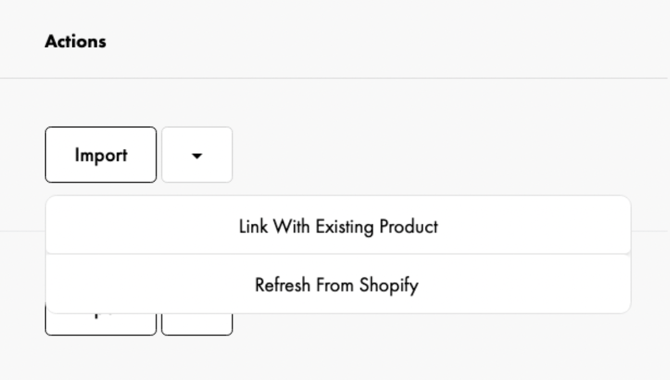
- Now link the Shopify product variants (shown on the left in the image below) with the corresponding Wolf & Badger product, shown in the dropdown menu.
Search for the product name and link the correct variants together: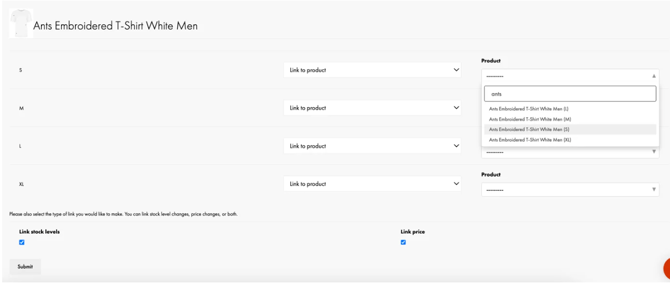
- If one of the variants is discontinued or correlates to a different Wolf & Badger product, you can click the dropdown arrow and choose to Ignore the product. The price and/or stock data for any 'ignored' variants won't be shared with Wolf & Badger:

- Choose if you'd like to sync the product with Shopify stock levels and/or prices:
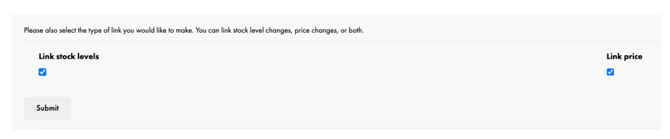
Click submit and you're all done!
Important Notes
- Imported products appear as Imported in the Integrations tab.
- Linked products will sync stock and/or price based on your selected options.
- Manual edits to stock/price are disabled if sync is active.
- If you choose to link Stock Data - Your stock count on Wolf & Badger will now be synced with Shopify, with Shopify being considered the master stock count.
IMPORTANT - You can check if a product is successfully linked to Shopify stock by visiting the stock level tab on the dashboard.
❌ If the stock field is editable like this (the box is white and you can + or - units of stock) then the product is not linked to Shopify stock sync ❌
✅ If the stock field is greyed out and you can't manually edit it, the product is linked to Shopify stock sync ✅
- If you choose to link Price Data - Your prices on Wolf & Badger will now be pulled from Shopify, with Shopify being considered as the master price. If you're running a product sale/discount on Shopify and a Wolf & Badger product is linked to price sync, the sale will be applied on Wolf & Badger products too.
If you have any further questions, you can reach the brands support team here.