![Hubspot logo-1.png]](https://kb.wolfandbadger.com/hs-fs/hubfs/Hubspot%20logo-1.png?height=27&name=Hubspot%20logo-1.png)
The process below is to set up a custom app using the Shopify Legacy app creation process. For steps on creating this using the new Shopify Dev Dashboard creation process (from Jan/26), please refer to this article.
To integrate with Wolf & Badger, head to the Shopify setup page on the dashboard:
- The shop name comes from your shop admin page URL. If your admin page is at https://myshopname.myshopify.com, your shop name is myshopname.
- The API secret key & the Admin API access token can be found on the API credentials page (see below for full instructions)
- Please ensure you save your API Secret Key and Admin API access token for future reference.
Here's a video tutorial to guide you through the process:
Still not sure? Follow the steps below to integrate Shopify with the Wolf & Badger dashboard:
Go to your Shopify store and click Settings
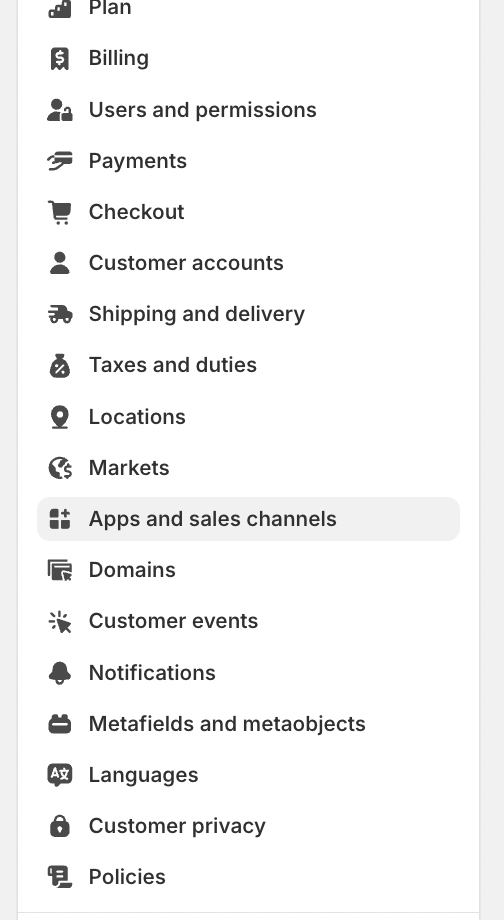
Click Develop Apps:

Then click Create an App:
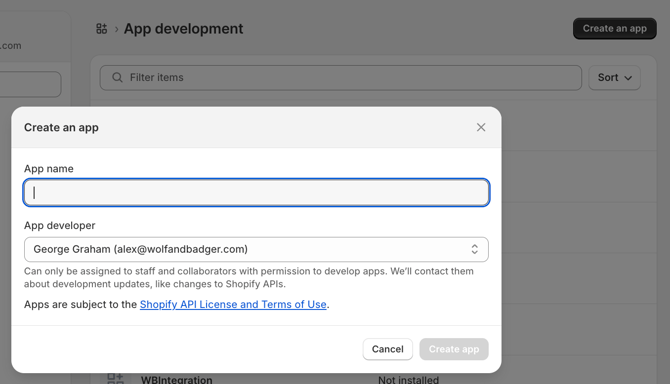
Please note:
If you don't see the option to add or develop an app, you may not have admin access to your Shopify account.
This option is only available to users with admin privileges.
Name the app WBIntegration and click OK, you should then see this page: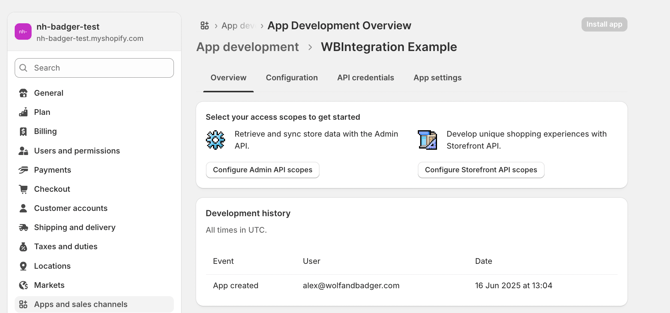
The Custom App has now been created but the settings have not yet been completed.
Whilst on the admin overview page for the WB Integration app, click Configure Admin API scopes to amend the permission scopes:
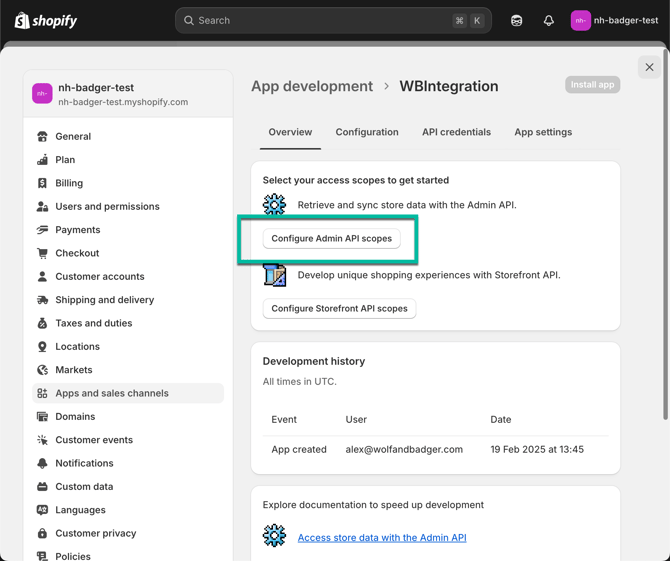
Now you need to share the correct API access scopes to ensure data is shared between Shopify and the Wolf & Badger dashboard:
write_inventory
read_inventory
read_locations
read_products
Please don't share all permissions - this may impact the performance of the integration: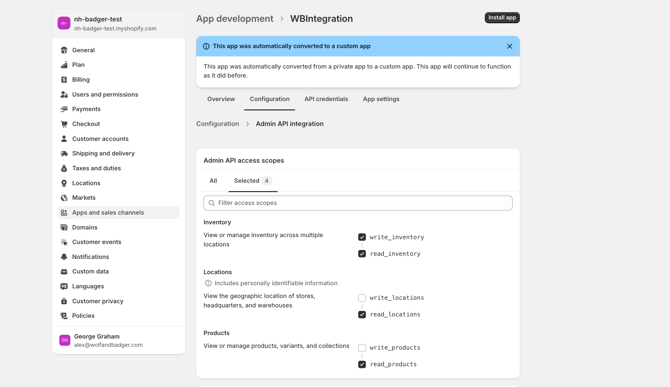
If your custom app is already set up and you're just editing the permissions scopes, head to:
Shopify / Settings / Apps & Sales Channels / Develop Apps / Click WB Integration / Configuration tab
Finally, click the edit button within the Admin API integration section as shown below & remember to save any amendments: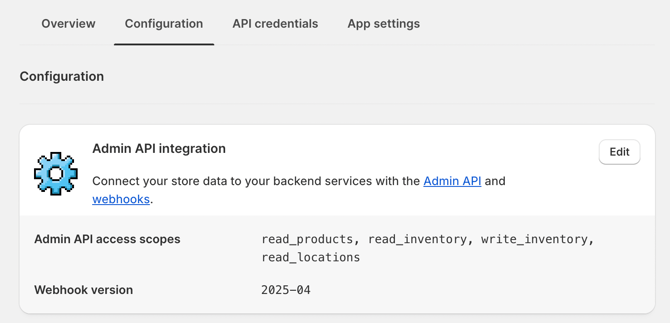
Scroll down the same page and ensure you choose webhook - 2026-04 (Latest) and click Save.
At this stage the app settings are complete but it's not yet connected with the dashboard.
To complete the integration you need to gather the correct login info and enter it here on the dashboard:
Shopify shop name
API Secret key
Admin API access token
Click the API Credentials tab and click Install App in the Access tokens section, as shown below:
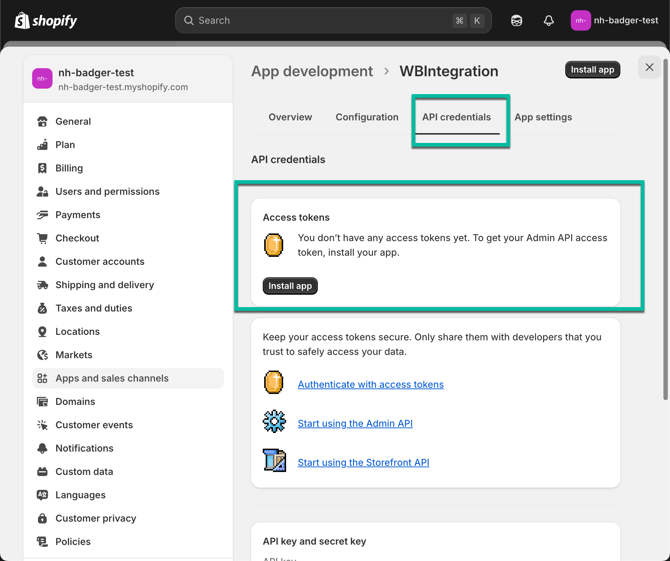
You will be prompted to confirm the installation. Click Install App again.
This step generates your Admin API Access Token + API key + API Secret Key
You only need the API Secret key + Admin API access token
Please disregard the API Key, entering it in the dashboard integration setup page will not result in a successful login.
Click Reveal Token Once
Please Note - This section does what it says and you will not get another chance to see this token, so copy, paste & store it somewhere secure.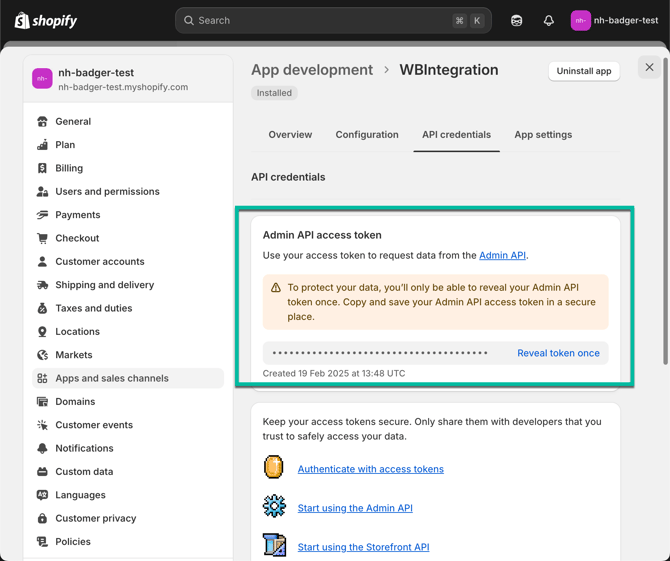
Paste in the Admin API Access Token here on the dashboard: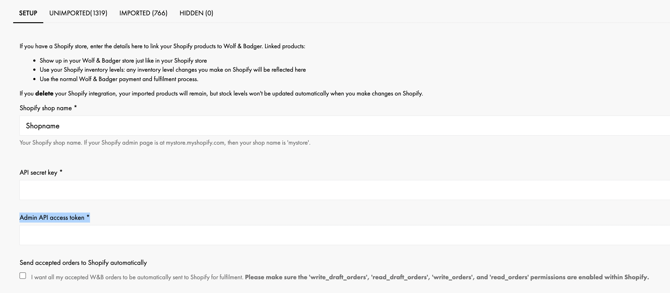
Now head back to Shopify and scroll down the API Credentials page to find your API Secret Key: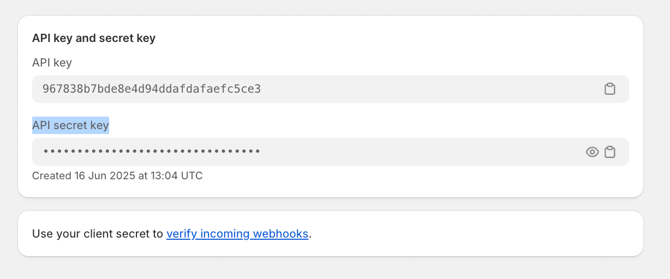
Paste in the API Secret Key here on the dashboard: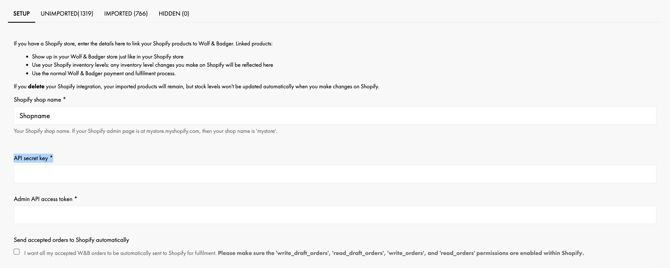
Enter your Shopify Shop name, which is the first part of your shop admin URL before the dot.
If your shop admin is at https://myshop.shopify.com/admin, your shop name is myshop: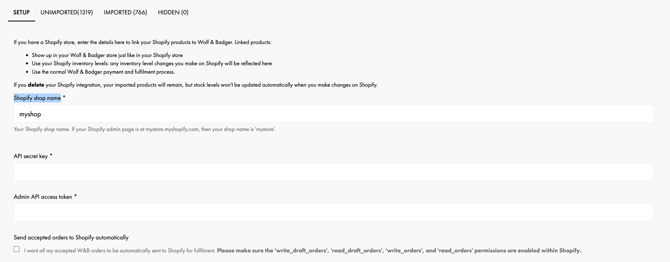
Can't remember your shop name? You can see it here in Shopify: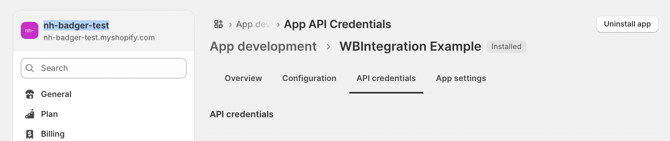
Key info - Shopify Inventory sync:
We now only pull stock data from active Shopify locations that are online enabled: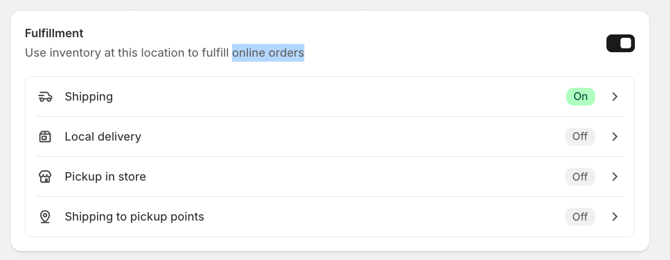
If you use multiple stock locations, please check your location settings to ensure stock isn’t pulled from an unintended fulfilment location (i.e a location which isn't your fulfilment address on the dashboard)
If all or several of your Shopify locations need to remain active and online-enabled, you may find it easier to manually manage your stock levels via the dashboard.
If you have any questions about integrating Shopify with the dashboard, please feel free to contact the Brands Support team for further assistance.