Price linking your items to Shopify means that your pricing on Wolf & Badger will now be pulled from Shopify, with Shopify being considered the master price. This helps to ensure that items are listed correctly on our website and allows you to adjust these in one platform, which will then automatically update those on Wolf & Badger.
Important: The option to price-sync your Wolf & Badger items to Shopify will only be available if your dashboard is in the same base currency as your Shopify store.
If your Shopify store uses a different currency, then items should not be price synced, as this will cause products to appear incorrectly priced on Wolf & Badger, affecting sales. Please control the price of these items manually via your dashboard.
If you're running a product sale/discount on Shopify and a Wolf & Badger product is linked to price sync, the sale will be applied on Wolf & Badger products too, ensuring that items are price-matched in line with our Price Match Policy.
Please note: If a product is entered into a Wolf & Badger sale (e.g 20% off) and is also synced with Shopify, where there is also a live sale, the discounts will be applied to products TWICE.
The sales that apply automatically from Shopify are fixed markdown and % discount sales which do not require customer intervention, e.g. them entering a code at checkout.
How to re/link a W&B item to Shopify to enable price sync:
If your items have not been price synced to Shopify, and you wish to enable this, follow the steps below to link your Shopify products' inventory to approved Wolf & Badger products (i.e not a draft product):
1. If you imported the product from Shopify to create the Wolf & Badger product and it's not correctly synced or price sync was not previously enabled, visit the imported section on the dashboard, find the product you want to link to Stock &/or Price sync and click the UNLINK button.
2. The product will move from Imported to Unimported.
3. Click the drop-down arrow next to the product on the unimported tab and choose Link with existing product.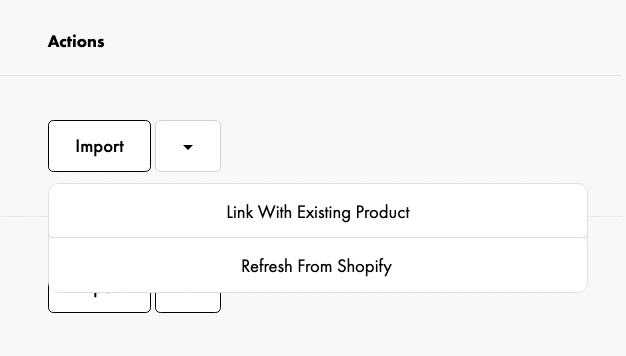
4. Now link the Shopify product (shown on the left) with the corresponding Wolf & Badger product, shown in the dropdown menu. Search for the product name and link the correct variants together.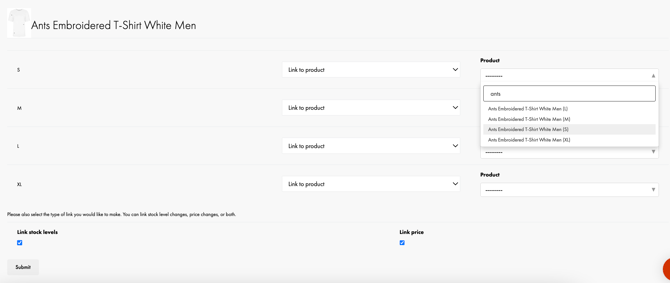
5. If one of the variants is discontinued or product not stocked on Wolf & Badger, you can click the dropdown arrow and choose to Ignore the product. That variant won't be linked to a Wolf & Badger product.

6. Ensure that both the 'Link stock Levels' and 'Link Price' options are ticked
7. Click submit
Your pricing on Wolf & Badger will now be pulled from Shopify, with Shopify being considered the master price. This means that if you're running a product sale/discount on Shopify and a Wolf & Badger product is linked to price sync, the sale will be applied on Wolf & Badger products too.
Important: We do not offer size or material ‘variant-pricing’ within W&B products and only one price can be set for the item as a whole.
If the product has a different price depending on the variant, e.g. Size A3 print is more expensive than A4, then a separate W&B product will need to be created for each item. The same applies for if an item is available in muliple materials options, e.g Gold version is more expensive than silver.
Checking if an item is price synced on your Dashboard
You can check if a product is successfully linked to Shopify price by visiting the products tab on the dashboard and opening up the product form for the item.
If the price field is editable like this then the product is not linked to Shopify price sync. If price sync permission was given during the import/linking stage, then the toggle will show 'Price sync disabled' and will be black.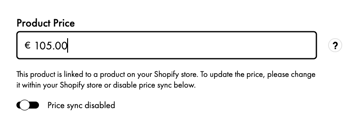
If the price field is greyed out and the toggle is green with 'Price sync enabled', then the product is linked to Shopify price sync.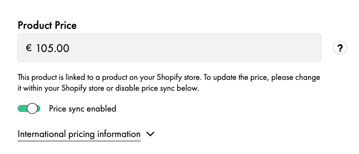
My Synced Prices are Incorrect:
- Check the product form within your 'Products' section of the dashboard to see if price sync is enabled
- If not, then enable this within the form and save the product for Shopify to act as the master price. Please note that the price as shown on the form will not update to match that within Shopify
- If enabling this is not an option, then relink the product to Shopify, following the steps above, to enable this feature (if applicable)
- Check if the product is included in any Shopify sales or any W&B sales, which will markdown the price of the item.
- Any active W&B sales being applied to a product will show in the 'Products' section of the dashboard next to the item
- Important: Remember that W&B sales stack on top of Shopify sales, which can cause items to be discounted incorrectly if entered into both. If this is the case, please contact our team to remove the item/s from the W&B sale.
- Refresh the product within the Shopify integration
-
Go to the Integrations tab.
-
In the Imported section, find the product you want to update.
-
Check the box next to the product and from the dropdown menu, select "Refresh from Shopify".
-
Click Submit.
-
- Relink the W&B and Shopify item, following the steps listed above, ensuring that price sync is enabled
Note that any product price adjustments, either done manually or in Shopify for synced products, can take 24 hours to reflect on the Wolf & Badger webiste.
Disabling Shopify price sync
To do this:
- Go to the imported tab of the Shopify integration and click ‘unlink’ to the product that needs linking. The item will no longer be linked to Shopify.
- To relink by stock only, then follow the steps above and ensure that the stock sync box is ticked only.
- Once relinked, review the product in the 'Products' section of your dashboard to ensure that the price listed in the product form is correct and update if needed.