Please follow our detailed guidelines on how to upload, organise & store your marketing content for the Wolf & Badger team.
How can I access Air?
Once you are live, our team will be in touch via email with an invitation titled 'Wolf & Badger has invited you to Air'.
Once accepted you will need to set up a password to access your brand folder. Once you have access, we request that you watch our introduction video guide in the ‘Guide to Air x Wolf & Badger’ folder and you can also find a PDF guide with in-depth guidelines.
You will now be able to view, upload & organise your content directly in your folders (also known as boards). You can also tag your lifestyle imagery depending on the season, theme and category.
Air Intro Video Guide
Basics of Air
What is a board?
The boards in Air are essentially folders, your brand folder is your primary board and the boards within are called sub-boards.
Who has access to the board?
Only your brand and our team have access to your board. That way we can efficiently find your collection of imagery for our marketing incentives.
Can I make my own boards?
We ask that you do not make your own boards as our team will not be able to source the content efficiently, please use the preset boards provided and reach out to our team if you have questions.
What boards are included?
1. Guide to Air x Wolf & Badger (include pdf guide & video guide)
2. Lifestyle Shots
3. Product Shots
4. In-studio Shots
5. Other Assets
6. Video Content 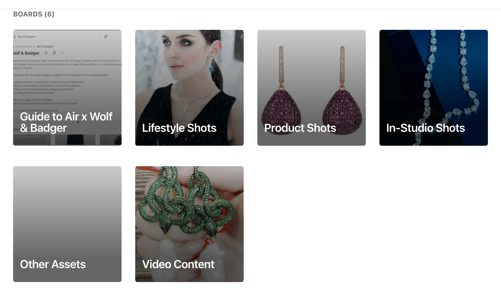
How can upload content?
Step 1: Select the board you would like to upload content to & review core guidelines
Step 2: Select + Add, as highlighted below 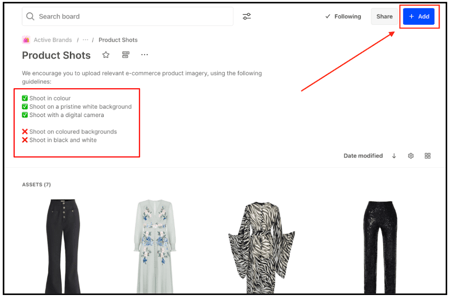
Step 3: Select either File Upload or Dropbox/ Box/ Google Drive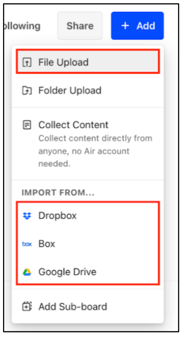
* Please do not upload any folders as these will not be available to our marketing team
How to name your content
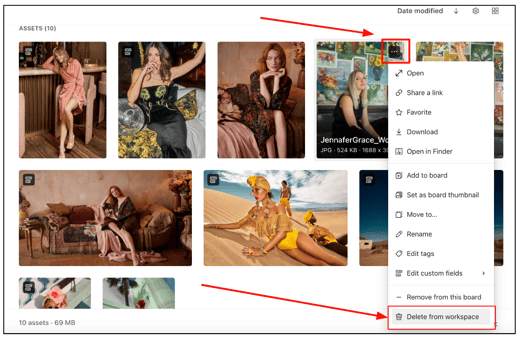
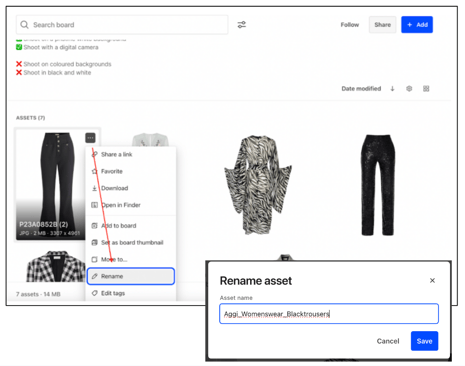
Step 1: Select the the 3 dots option on the content & click Rename
Step 2: Name content as: Brand name_category_description
Eg. Aggi_womenswear_blacktrouser
Tagging your content on Air
*Tag your lifestyle content only
Why should I tag my content? Our team will use the tags to easily source relevant content for upcoming themes in either email or social marketing incentives
How to tag your content
Step 1: Click into your content & select the fields options
Step 2: Select the most relevant tags for your content.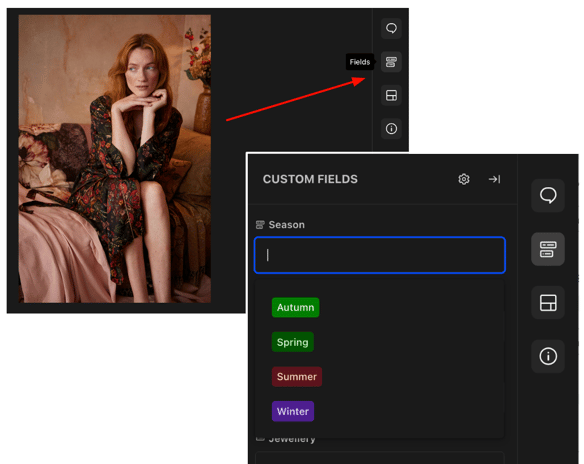
The options are grouped as:
Season
Primary category
Clothing
Jewellery
Home & Wellness
Gifting
How to remove your content
- If you discontinue a product on Wolf & Badger, please remove any associated content from Air.
- When you pause your account, your content will remain on Air but our team will not have access to it. When you return from pause it will be available again, however you can still access the folder.
Step 1.
Select the 3 dots option on the content (see image below)
Step 2.
Select Delete from workspace