We have recently partnered with a new payment platform 'Tipalti'. All brands should have now registered payment details via the dashboard, if you have not done so please go ahead to prevent any delays with your upcoming payment.
Updating Payment Details
- To access our payment centre, please navigate here.
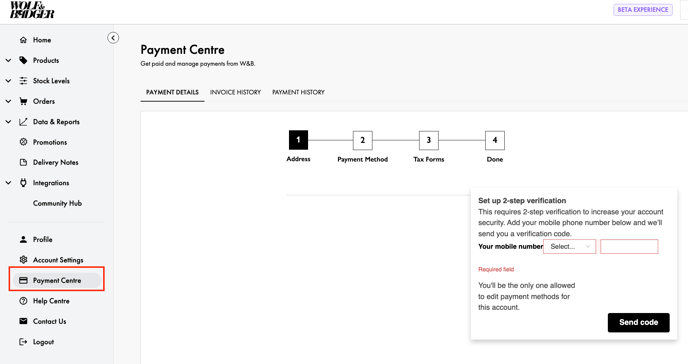
- Alternatively, go to your dashboard -> select Payment Centre (see below)
FAQs
1. For company name, should I use my legal or brand name?
Legal name is preferred but brand name is acceptable.
2. If I have the choice, should I select Wire or Local Bank Transfer?
It’s based on what would suit you and your situation more.- Local Bank Transfer: Lower fees, paid in your local currency, slightly slower. Best if your bank is in the same country or currency zone.
- Wire Transfer: Faster, supports foreign currencies, but more expensive. We’d advise you only use this if local transfer isn’t available or you need payment in a foreign currency.
3. How do I avoid paying FX fees?
Cross-currency payments incur FX fees: 3% for amounts under £500, 2.5% over £500. To avoid fees, select your invoice currency if available or contact us to discuss alternatives.
4. If my bank is situated in a different country to where my brand is based, what should I do?
If your bank is in another country, then make sure to include your bank address in the 'Address' section and this should allow you to move forward.
5. *US BASED OR BUSINESS ONLY* What is a W9? Where do I get the information to fill it in?
A W-9 is a U.S. tax form used to provide your Taxpayer Identification Number (TIN) to companies that pay you. It’s required if you’re a U.S.-based individual or business. You’ll need to provide: your legal name or business name, TIN (either SSN or EIN), business type (e.g., individual, LLC, address and other info.Tip: You can usually find this info on your tax documents, business registration, or through your accountant.
Tracking Payments
Where can I track upcoming and historical payments?
- Payment History: This Tab will provide visibility over upcoming and historic payments. The Amount Submitted will match up to the amount you have been / are to be paid for a given month, as detailed in “Payment Invoices” in the dashboard. Payment can have the following statuses:
- Submitted: We have submitted the order to the platform, payment will follow soon.
- Deferred: Payment has failed and a deferral reason will be displayed. You will also be contacted via email to fix the issue that caused payment failure.
- Paid: We have processed the transaction and sent the funds to your account.
- Invoice History: The Invoices will be helpful if your payment amount has had to be offset due to negative sales or unpaid subscription invoices for example. Use this tab to get further clarity in these rarer situations.