- Log into your dashboard.
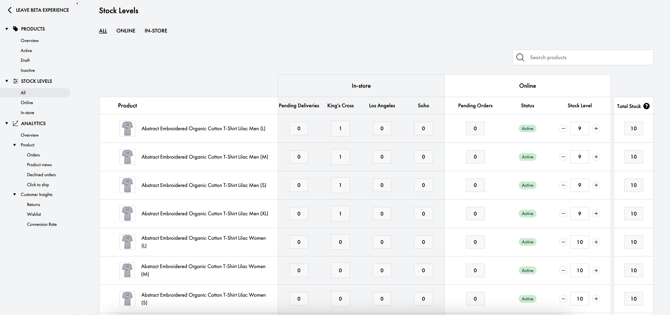
- Go into the stock level section on the left menu.
- You can then update the stock for your products as needed by either entering the stock number or using the -/+ buttons — make sure that you have the right amount of items left to avoid having orders come through when they are sold out.
- Once the stock on the page being viewed has been updated, click the 'Update Stock' button in the bottom banner.
- Once saved, you can then move into the next page to repeat the process as needed.
If you need to update the stock for a specific item, then search bar to pull up the item so that you can adjust the stock as needed.
You can also use the filter options to see items that are out of stock, inactive and active, as well as using the 'In-Store' tab to view your current stock levels hend in our physical stores.
Please ensure that your stock levels are accurate. Not having stock to fulfil an order may result in additional charges or may result in your account being suspended or cancelled if you frequently cannot fulfil orders.
If you cannot manually update your stock levels, note that they will be managed by an external integration. Click here for more information.