FAQs:
Is there a deadline to provide GTINs?
No. We recommend adding GTINs at scale over time. Start with new products, then work back through older products that will remain in stock and available for purchase.
Will products without GTINs be deactivated or become unavailable for sale?
No. Products without GTINs will not be automatically deactivated or made unavailable for sale.
Does every size and colour variant need its own GTIN?
Yes. Every variant available for sale on Wolf & Badger needs its own unique GTIN, including individual size and colour variants.
If I use Shopify, will adding GTINs to the Barcode field update my existing Wolf & Badger listings?
Yes. Add the correct GTIN to each Shopify variant’s Barcode field, then refresh the product connection in Wolf & Badger to update the existing listing.
What is a GTIN?
A GTIN (Global Trade Item Number) is a unique product identifier used worldwide to identify individual products and their variants, such as different sizes or colours. GTINs are recognised by retailers, marketplaces, shipping providers and search platforms to help identify products accurately.
Common GTIN formats include:
- GTIN-8: 8 digits
- GTIN-12 (UPC): 12 digits (primarily North America)
- GTIN-13 (EAN): 13 digits (most common internationally)
- GTIN-14: 14 digits (used for logistics and grouped products)
Each product variant (for example, different sizes, styles or colours) should have its own unique GTIN
Why are GTINs required?
GTINs are now a mandatory product attribute for all products on Wolf & Badger.
By adding GTINs to your products, you'll help improve the quality of your product data while ensuring your catalogue is ready for the future of ecommerce.
GTINs help to:
- Improve product visibility across search engines, marketplaces and other shopping channels.
- Enable accurate product identification across retailers, logistics providers and shipping carriers.
- Reduce fulfilment errors by ensuring every product variant can be uniquely identified.
- Support inventory management and international commerce through globally recognised product standards.
- Future-proof your catalogue for emerging AI-powered shopping experiences and agentic commerce, where standardised product identifiers (GTINs) help AI assistants accurately discover, compare and purchase products.
How can I generate GTINs?
If you don't already have GTINs, you'll need to obtain them from GS1, the global organisation responsible for issuing GTINs.
We recommend obtaining GTINs directly from GS1 rather than third-party barcode resellers.
To get started:
-
Visit the GS1 barcode registration page: https://www.gs1.org/standards/get-barcodes
-
Select your country to find your local GS1 organisation.
-
Register with GS1 and obtain GTINs for your products.
-
Assign a unique GTIN to each product variant (for example, each size or colour).
GS1 offers two ways to obtain GTINs:
Individual GTINs
- Best if you only have a small number of products.
- A simple, low-cost option for smaller catalogues.
GS1 Company Prefix
- Best for larger or growing catalogues.
- Allows you to generate GTINs for all of your products as your range expands.
If you're unsure which option is right for your business, your local GS1 office can help.
Already using GTINs?
If you already use GTINs on your own website or sell through other marketplaces or retailers, you can use your existing GTINs.
There's no need to generate new ones.
How can I share GTINs with Wolf & Badger?
Shopify users:
If your products are connected via the Shopify integration, any GTINs stored in the Barcode field for each product variant will automatically sync to the corresponding products in your Wolf & Badger dashboard.
- Existing products: If your GTINs are already stored in Shopify, no further action is required - they will automatically sync to Wolf & Badger.
If not, you can manually add the GTINs to the Barcode field in Shopify and refresh the link with the dashboard products here. - New products: When creating a new product in Shopify, ensure you add the GTIN to the Barcode field for each product variant before importing the product to your Wolf & Badger dashboard.
Non-Shopify users:
Once you've obtained GTINs for your products, you can share them with Wolf & Badger in one of two ways.
Option 1 - Upload your GTINs in bulk (recommended):
If you have multiple products, you can download a CSV of your products here on the dashboard.
- Visit Stock Levels on the dashboard
- Click 'Download all Stock' to generate the CSV
- Add in your GTINs per product variant, then send us the completed CSV to brandsteam@wolfandbadger.com. We'll then share it with our product team who will map the GTINs to the corresponding products in your Wolf & Badger catalogue.
Option 2 - Add GTINs manually, per product:
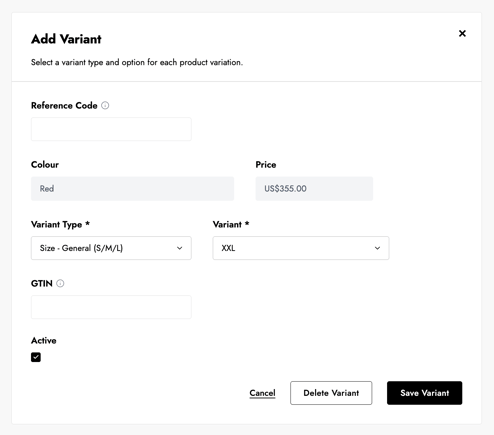
You can also add GTINs directly within your Wolf & Badger dashboard.
- Visit Active Products on the dashboard
- Open the product you want to update
- Enter the GTIN for each product variant
- Save your changes
Please note: If the barcode in Shopify is not a valid GTIN or is entered in an incorrect format, it will not be displayed. The same validation applies when a GTIN is added manually.
If you have any questions about GTINs or need help updating your products, our Brand Support team is here to help. Simply get in touch here.